Apps › Design
Design
Posters, menus, flyers, signs and social images, ready for print or the web.
How to get it
Design is installed from the NylonLabs hub. See the download page.
Changelog
0.0.2-alpha (2026-10-16)
Drawing and logo work.
- Pen: click to place corner points, drag to pull out curves, click the first point to close the shape (or press Enter to leave it open).
- Pencil: draw freehand; the line is smoothed when you let go. End where you began to make a closed shape.
- Edit points: double-click a path (or use Edit points on the new Paths tab) to drag its points and their handles. Double-click a point to switch between smooth and corner; double-click the outline to add a point; Delete removes points; Smooth, Corner and Close or open are also in the panel. Rectangles, ellipses, polygons, stars and lines become editable paths when their points are edited.
- Combine shapes: union, subtract (the bottom shape minus the others), intersect and exclude, on shapes and on text.
- Compound paths: make one path with holes where shapes overlap, and release it back into its parts.
- Text on a path: select a text and a shape and put the text along the shape's outline. Move where it starts and lift it above or below the line; double-click it to change the curve. Straighten text takes it off the path again.
- Text to outlines: text becomes shapes, for logos and for print shops that ask for it.
- Pattern fills: stripes, dots, checks, grid, zigzag and diagonal lines, with their own colour, background, size, weight and angle. They stay vector in PDF and SVG.
- SVG: import an SVG as shapes you can edit (groups, gradients, styles and text come in), open an SVG file as a new design, or drop one on the page. Export any page as an SVG; text goes in as outlines, so it looks the same everywhere, and keeps its words for screen readers.
- Logos: a Logo 1000 x 1000 page size and a see-through page background; PNG and SVG keep the transparency.
- Fixed: SVG pictures can be chosen in the Picture window on Windows (they could only be dropped or pasted before).
0.0.1-alpha (2026-10-16)
The first version: posters, menus, flyers, signs and social images, ready for print or the web.
- Pages: A5, A4, A3, A2, US Letter, DL flyer, a 1080 square, a 1080 x 1920 story, a 1920 x 1080 landscape, or any size in millimetres or pixels. Turn a page between portrait and landscape. One file can hold several pages; add, duplicate, move and delete them from the thumbnails on the left.
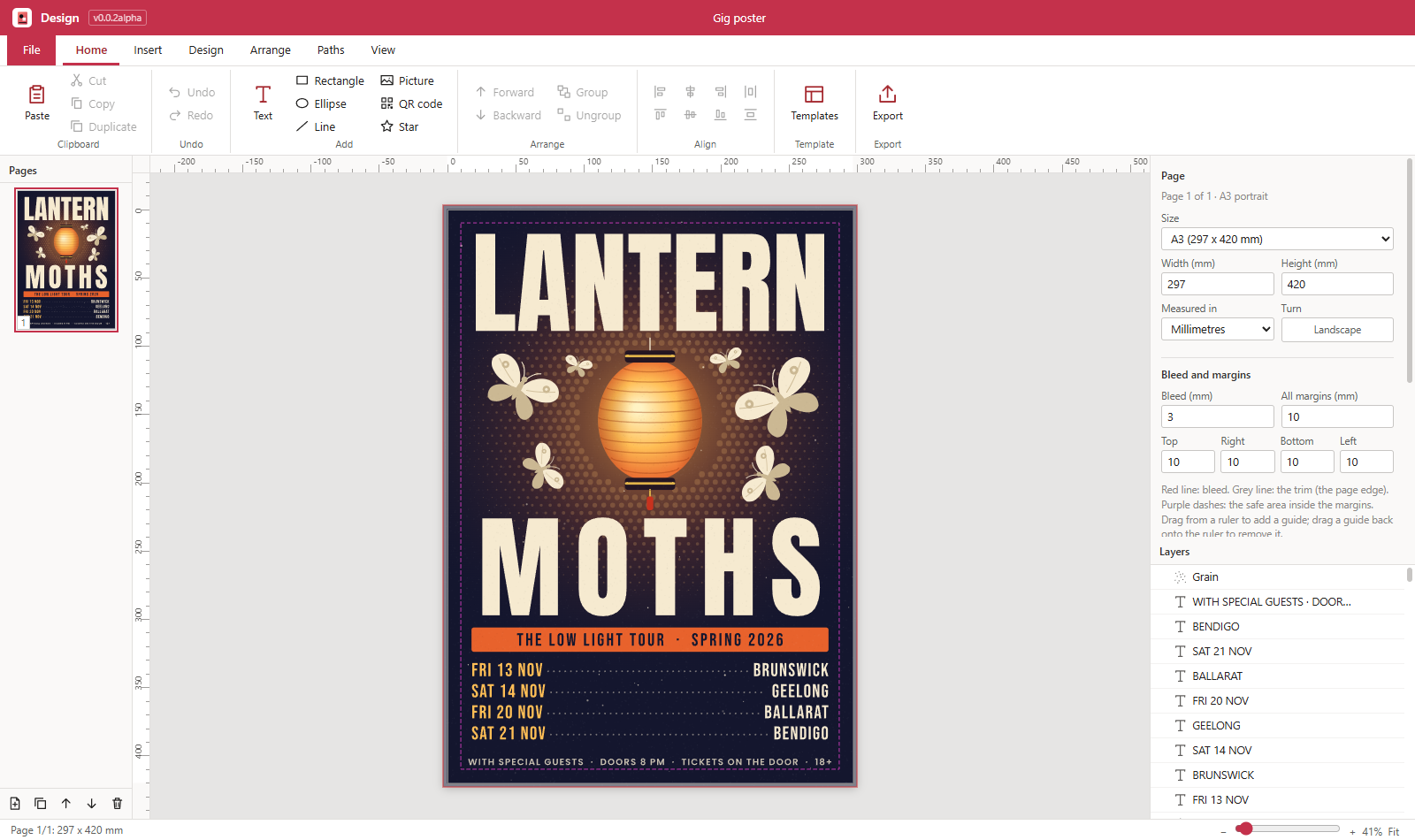
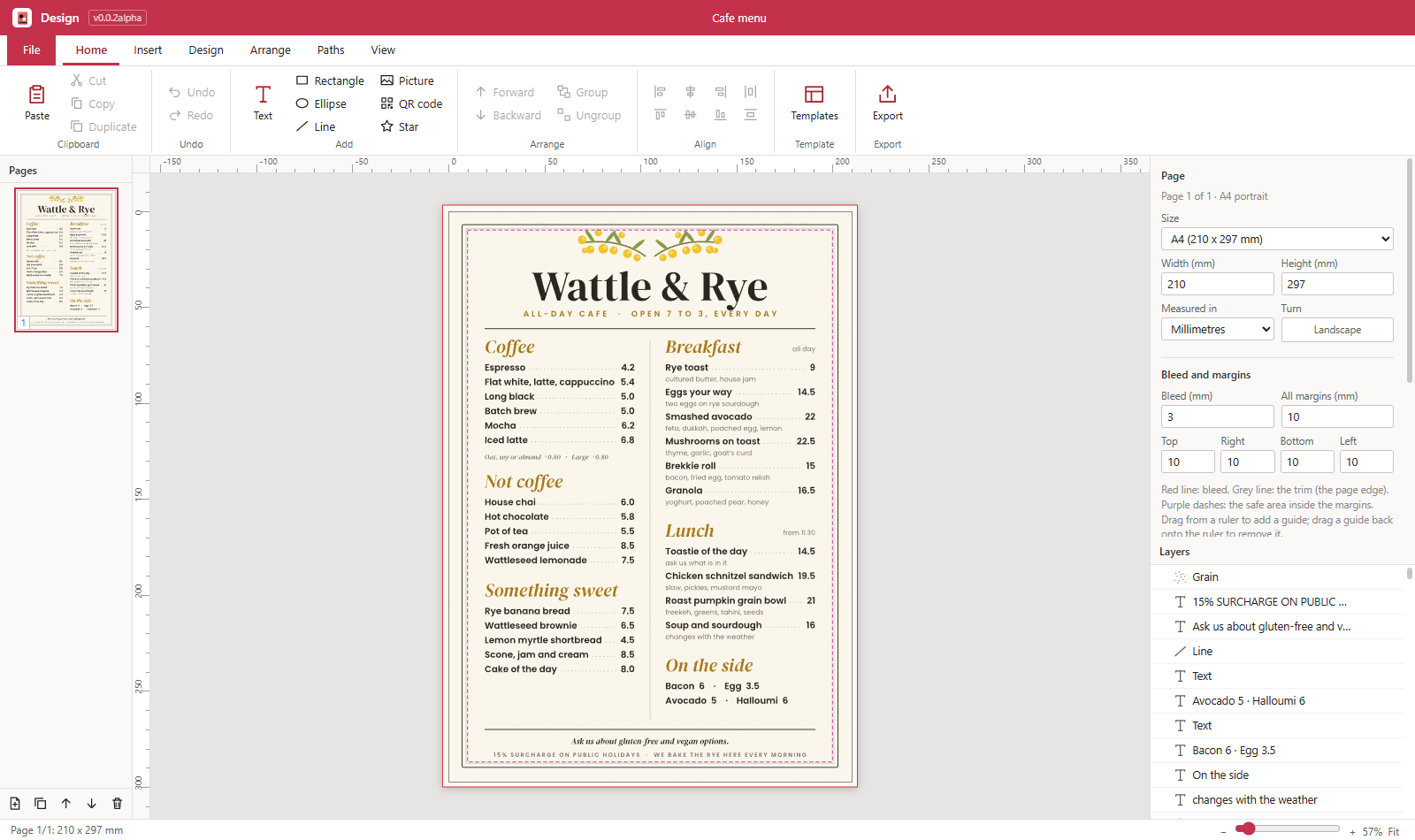
- Bleed, margins and guides: print pages start with 3 mm bleed and 10 mm margins, and both can be changed. The page shows the bleed (red), the trim (grey) and the safe area inside the margins (purple dashes). Drag from a ruler to add a guide; drag it back to remove it.
- Text: headings, subheadings, body text and text boxes. Font, weight, italic, size, letter spacing, line spacing and alignment. Text can wrap in its frame, shrink to fit its width or fill the width. Text on a colour plate, outlined letters, and shadows. Type straight into a text on the page (double-click it, or press Enter).
- Shapes: rectangles, rounded rectangles, ellipses, lines, polygons and stars. Shift keeps them square or round, and keeps lines at 15° steps.
- Pictures: PNG, JPG and SVG pictures, added from the ribbon, pasted, or dropped on the window. A picture fills its frame, fits inside it or stretches to it; double-click to move it inside its frame and use the wheel to zoom it.
- QR codes: type a link or any text; the squares and the background colour can be changed, and so can the error correction.
- Groups: group and ungroup; double-click a group (or Ctrl+click) to work inside it. A group can clip what is inside it to its lowest shape.
- Editing: select, move, resize and turn with the mouse; Alt-drag leaves a copy behind; the arrow keys nudge (Shift for 10 times as far). Objects snap to the page edges and centre, the margins, the bleed, guides and other objects, and to equal spacing between neighbours. Hold Ctrl while dragging to place freely.
- Arrange: align (to each other, or to the page when one object is selected), space evenly, bring forward and send back, lock, hide, turn by 90°.
- Layers and properties: a layers panel (rename, hide, lock, drag to reorder) and a properties panel for whatever is selected, or for the page when nothing is.
- Look: solid colours with their own transparency, linear and radial gradients, outlines (solid, dashed, dotted), opacity, blend modes and soft shadows.
- Effects: paper grain, sun rays and halftone dots, each one click from the Insert tab and adjustable afterwards.
- Undo and redo many steps back (Ctrl+Z, Ctrl+Y). Copy, cut and paste (Ctrl+C, Ctrl+X, Ctrl+V); text copied from another program is pasted as a text frame and a copied picture as a picture. Zoom with Ctrl and the wheel, pan with the wheel or by holding Space and dragging, fit the page with Ctrl+0.
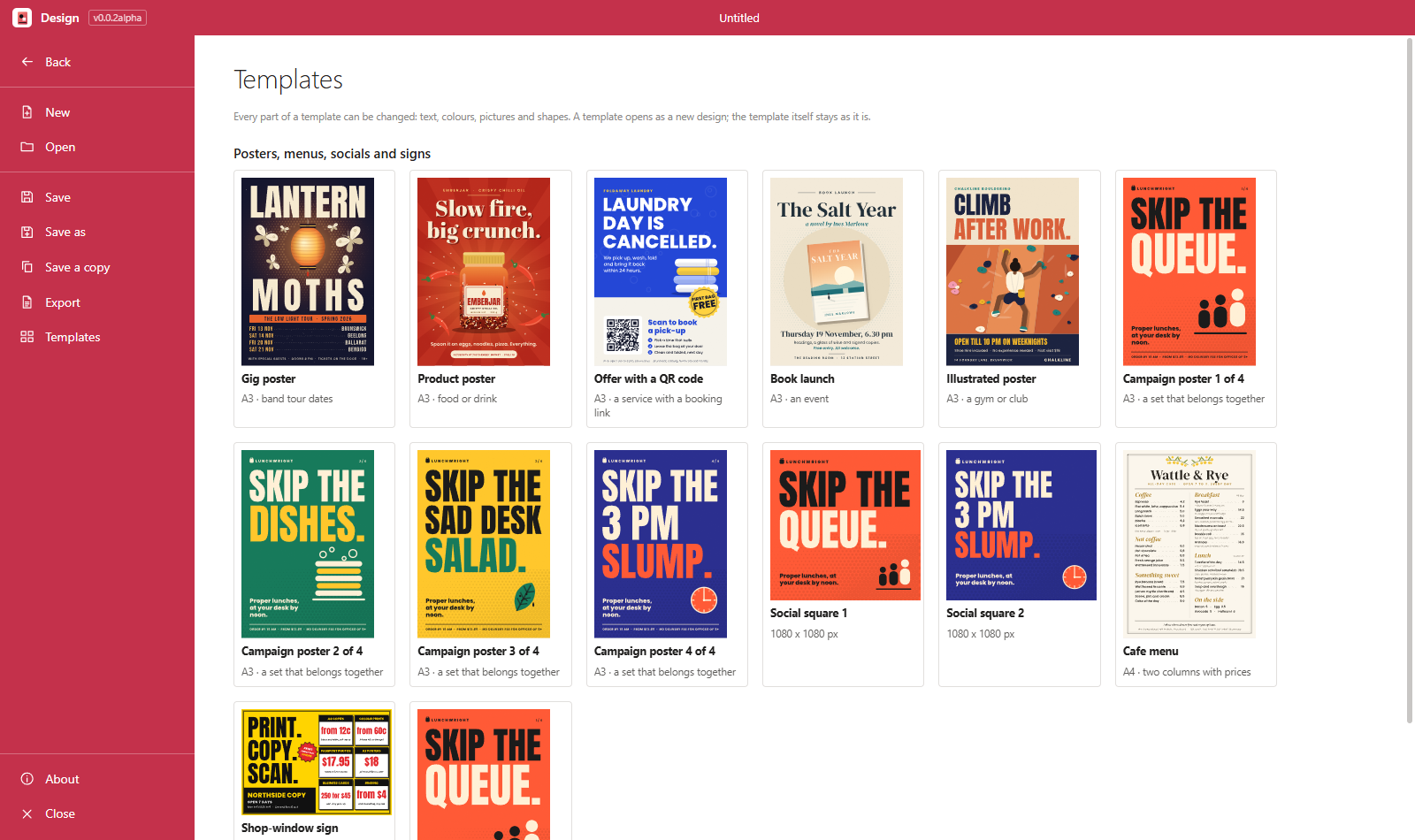
- Templates: thirteen designs to start from: a gig poster, a product poster, an offer with a QR code, a book launch, an illustrated poster, a set of four campaign posters (also as one four-page file), two social squares, a cafe menu and a shop-window sign. Every part of them can be changed. Any design can be kept as a template of your own.
- Brand kits: a client's logos, colours and fonts in one place. Pick a kit for a design and its colours come first in the colour lists, its fonts come first in the font list, new text uses its fonts, and Insert > Logo places its logos.
- Export: PNG and JPG at any resolution (300 dpi for print), with or without the bleed; a print PDF with bleed and crop marks, where text and shapes stay sharp and the fonts are inside the file; and a small preview JPEG with a PREVIEW mark across it, to send before a job is paid for. All pages at once as one PDF, or as a zip of pictures. File > Save a copy makes a print PDF or a 300 dpi PNG in one step.
- Files: designs save as one .design file holding the design, its pictures and the fonts its text uses, so it opens the same on another computer.
- In a browser: the app also runs as a web page that can be installed (for example on a Chromebook), with the same tools. Very large picture exports are left to the Windows app there.
- Works without the internet and sends nothing anywhere.