
Apps › Scribe
Scribe
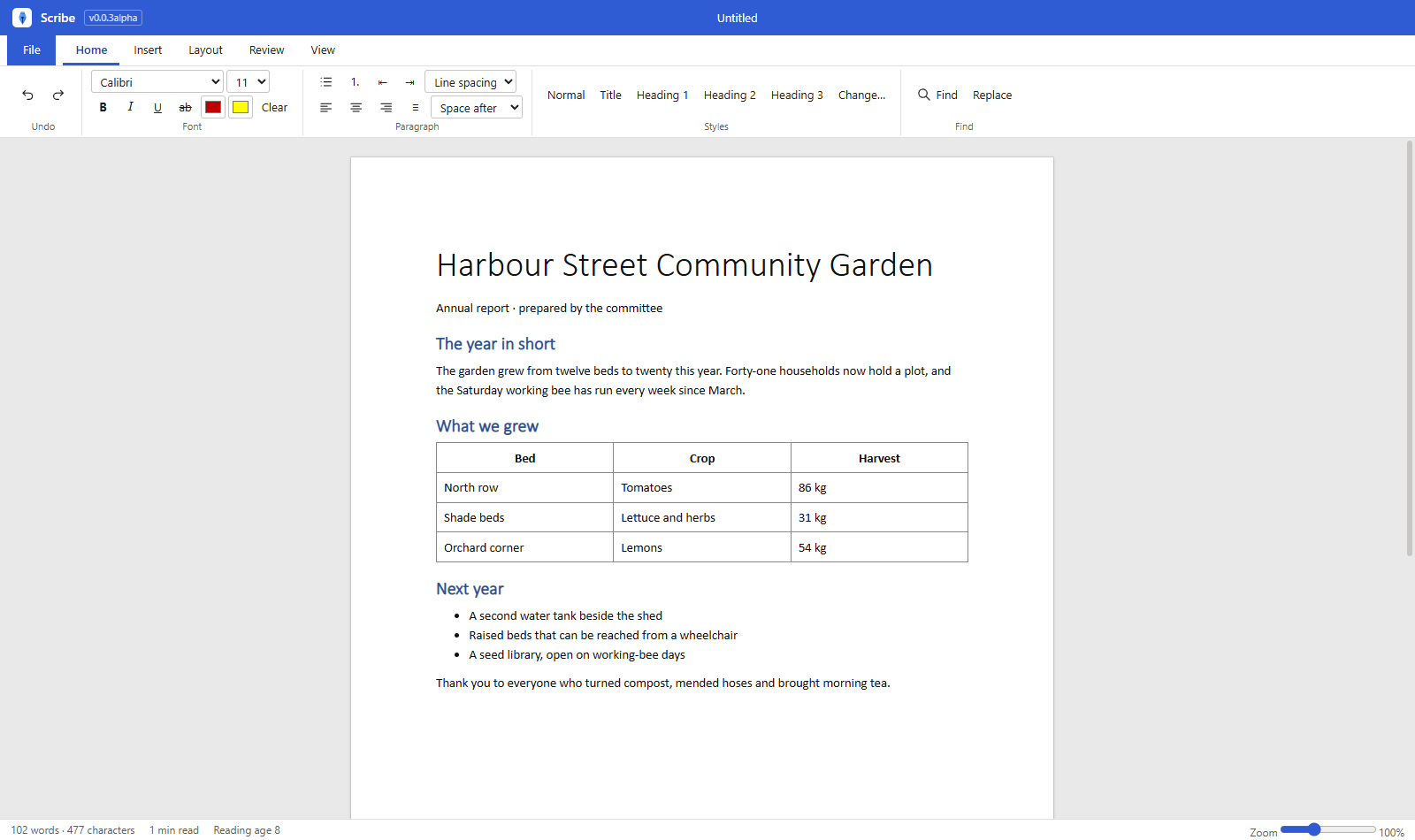
Write documents: text, pictures and tables, saved as files or PDF.
Works with your files
Scribe opens and saves Word (.docx) files. A file from another program opens as a copy, so the original is never changed, and the app lists anything in it that it has no place for yet. It has been checked against LibreOffice; it has not yet been checked in Microsoft Office itself.
How to get it
Scribe is installed from the NylonLabs hub. See the download page.
Changelog
0.0.3-alpha (2026-10-13)
- Headers, footers and page numbers. Layout › Header and footer puts text at the left, centre and right of the top and bottom of every page;
{page}and{pages}stand for the page number and the number of pages. Page numbers can also be picked from a list (bottom centre, bottom right, top right, "Page 1 of 3"). The first page can be left without them. They print, go into PDFs, and are kept in Word files. - Table of contents. Insert › Contents lists the document's headings with their page numbers and keeps itself up to date; click a line to go to that heading. View › Outline shows the headings beside the page. Word sees the list as a contents field it can update.
- Footnotes. Insert › Footnote puts a number in the text and the note in a list at the end of the document; the numbers follow the order of the text. In a Word file they are real footnotes at the foot of the page.
- Spelling. Words that are not in the Australian English word list are underlined (colour, organise and centre are right; color is marked). Right-click a marked word for suggestions, Add to my words, or Ignore. It works without the internet and can be switched off in Review.
- Find and replace. Ctrl+F finds, Ctrl+H replaces: one at a time or all at once, with Match case and Whole words, a count of the matches, and every match highlighted.
- Word count, goal and reading age. The bottom bar shows words, reading time and a reading age. Review › Word count gives sentences, paragraphs and pages, and takes a word goal that shows as a progress bar.
- Comments. Select text and choose Review › Comment. Comments sit beside the page with who wrote them and when; they can be replied to, resolved and deleted, and are kept in Word files (replies and resolved included).
- Track changes. With Review › Track on, typed text is marked as added and removed text stays, struck through, each with a name and a time. Accept or reject one change, the changes in a selection, or all of them. Kept in Word files.
- Version history. Each save keeps a copy on this computer (the last 30 for each document). File › Version history lists them and puts an earlier one back on the page.
- Templates. File › New offers a letter, a report, a resume, meeting minutes, an essay, a tax invoice and a school worksheet.
- Columns and text boxes. Insert › Columns puts the selected paragraphs in two or three columns; Insert › Text box adds a box at the left, the right or across the page with the text flowing around it. Both are kept in Word files.
- Styles you can change. Home › Styles › Change sets the font, size, colour, bold and italic of Normal, Title and Heading 1 to 3 for the whole document. Line spacing and the space after a paragraph can be set for the selected paragraphs. A Word file's own styles are used when it is opened, and Scribe's are written into the files it saves.
- Word files: headers and footers, footnotes, comments, tracked changes, text boxes and columns are now kept instead of being listed as not kept. A comment that marks no text is attached to its paragraph.
- Changed: with tracking on, pasted text goes in as plain text.
- Limits in this version: footnotes are shown at the end of the document on screen (at the foot of the page in Word); page numbers in the contents list and the page marks are worked out from the layout on screen and can differ by a page from a printout; new paragraphs, formatting, pictures and tables are not tracked; a header or footer holds text and page numbers, not pictures; the version history is kept on the computer the document was saved on. Checked with files built the way Word writes them and with LibreOffice, which opens and re-saves Scribe's files with all of the above in place. Not yet opened in Microsoft Word itself.
- The spelling word list is the SCOWL en_AU dictionary by Kevin Atkinson and others; its notice is on the About page and in the app's licences folder.
- Fixed: the window opens at the size and place it had when it was last closed, and maximised if it was maximised.
0.0.2-alpha (2026-10-12)
- Word documents. Scribe opens and saves
.docxfiles. Kept both ways: text with its fonts, sizes, colours and highlight, bold, italic, underline and strike-through, super- and subscript, the title and headings, alignment and indents, bullet and numbered lists with their levels, tables (merged cells and cell colours), pictures, links, page breaks, lines, and the paper size, direction and margins. - It says what it does not keep. A yellow bar under the ribbon lists what a Word file holds that Scribe has no place for yet (headers and footers, footnotes, comments, tracked changes, text boxes, charts, columns).
- The original is safe. A file from another program opens as a copy: the first Save asks where to put your version. A
.docxthat Scribe itself wrote saves in place. - File › Save as now asks for the file type (Scribe document or Word document).
- The app reads and writes the files with its own code (no outside library). Checked with files built the way Word writes them and with files made by LibreOffice; LibreOffice opens the files Scribe writes. Not yet opened in Microsoft Word itself.
0.0.1-alpha (2026-10-12)
- First version: a document editor with an Office-style ribbon. Fonts, sizes, colours, headings and styles, lists, pictures, tables, links, page breaks, paper size and margins, find, word count, zoom.
- Files:
.scribe, and it opens and saves.htmland.txt; saves PDF; prints. - Runs on Windows (its own installer) and in a browser (Chromebooks and other computers), with the same pages and the same icons on both.
- Free for everyone. Not in it yet: Word files (.docx), comments, spell check, headers and footers.